
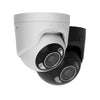
Reset Ajax camera
, by Showroom ASE, 4 min read
, by Showroom ASE, 4 min read
Is your camera no longer responding, can't you connect to the app or do you want to reset the camera? Then it may be necessary to reset an Ajax camera. A reset returns the camera to factory settings so you can add it back to your security system.
Although Ajax cameras are known for their reliability and user-friendly installation, it may sometimes happen that a camera needs to be reset. In this guide we explain how to reset an Ajax camera, why a camera sometimes does not respond and what about the default password.
Do you use Ajax security cameras or do you want to install a new system? Discover the range Ajax IP camera surveillance.
There are several situations where resetting a camera may be necessary.
Common reasons include:
the camera stops responding in the app
the camera can no longer be connected to the network
you want to add the camera again to an Ajax hub
you bought the camera second hand
settings need to be reconfigured
Resetting the camera will erase all settings and return the device to factory settings.
Most Ajax cameras can be reset via a reset button on the device.
First make sure the camera is turned on. This can be done via:
PoE (Power over Ethernet)
a power supply or adapter
The reset button is usually located:
on the bottom of the camera
under a small protective cap
at the camera connections
The button is often small and can be pressed with a paper clip or thin pin.
Press and hold the reset button for about 10 to 20 seconds while the camera is on.
Release the button once the camera restarts. You often see that:
the status LED changes
the camera tries to reconnect
the camera is reset to factory settings
You can then add the camera to your system again.
In some cases you can also delete and re-add a camera via the Ajax app.
This often works as follows:
Open the Ajax app
Go to the camera settings
Remove the device from the system
Add the camera again via the app
This is useful when the camera is still accessible in the system.
If a camera does not respond, this does not necessarily mean that there is a defect. It is often due to a connection or settings.
Common causes include:
network problems
wrong settings in the app
a firmware error
problems with nutrition
a conflict in the network
By resetting the camera you can redo the installation and many of these problems will disappear.
After resetting, the camera must be set up again.
This usually takes the following steps:
Connect camera to the network
Open the Ajax app
Add new device
Scan the camera's QR code
Complete the installation
You can then view live camera images via the app again.
Ajax is known for modern security systems that are easy to operate via an app. The cameras are often used in combination with an Ajax alarm system, allowing you to manage camera images and notifications in one platform.
Ajax cameras are used, among other things, for:
homes
shops
offices
business premises
The combination of smart software and reliable hardware makes these systems popular for both private and business security.