Port forwarding router
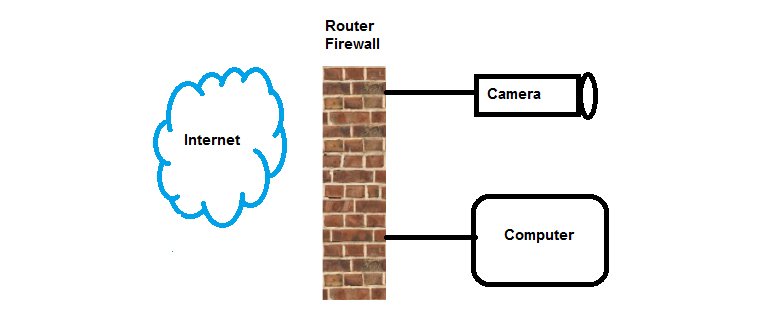
If you have purchased an IP camera or recorder, you will of course like to see the images on your mobile phone. To see this, you must configure your router correctly. We are happy to help you with these step-by-step instructions. This is a guideline, your system may be in English or may differ slightly from our instructions.
Forward IP cameras – Three simple steps
Step 1: Set the correct port
Make sure the camera or recorder is connected to the router, you can then enter the IP address in your internet browser. Log in with your username and password.
Once you have logged in, go to 'Network settings', and then to port. There you will see 3 port numbers. If you do not change these, open port 80, 8000, and port 554 in the router. See the image below: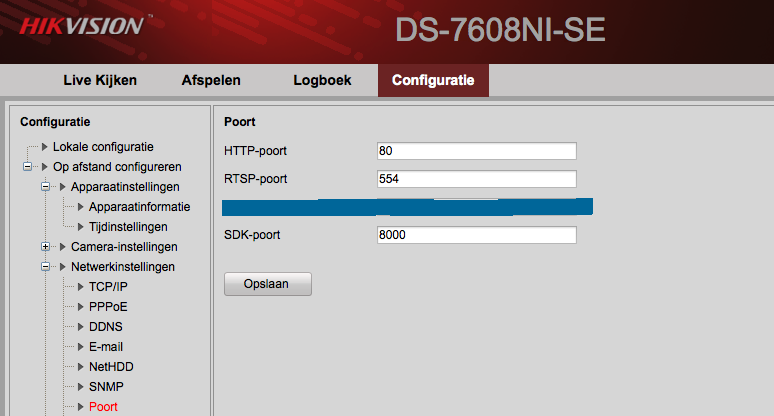
Step 2: Set up the router
Make a note of the series of numbers listed to the right of 'Default Gateway', you will need these later.
Please note: Your Default Gateway may differ from the one in the image, this is normal.
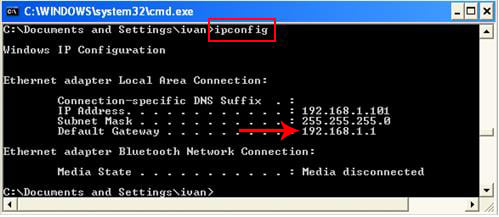
Log in to your router. You do this by entering the IP address of the router in the internet browser, in this case it is 192.168.1.1
Go to the router's settings and go to the 'Forward' or 'Port forwarding' page.
Enter the chosen port number of the camera or recorder for both the 'Internal port' and the 'External port'. Under 'IP address' enter the IP address of the camera or recorder. Under 'Protocol' select 'TCP'. Check the 'Enable' box to apply the settings. Click 'Apply' to complete the action.
Below is an image of a KPN Experiabox Router: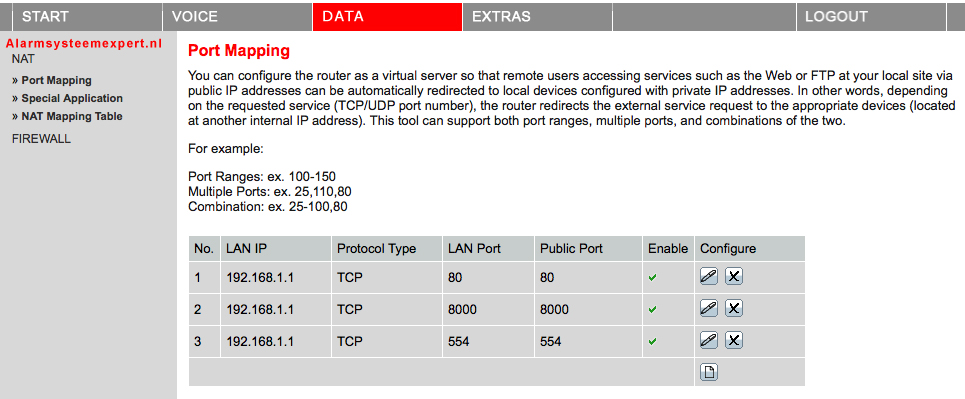
Step 3: Set up the application on your mobile device:
Download the Hikvision IVMS-4500 app from the app store.
Search via the website www.myip.nl your external IP address, you will need this later in the app: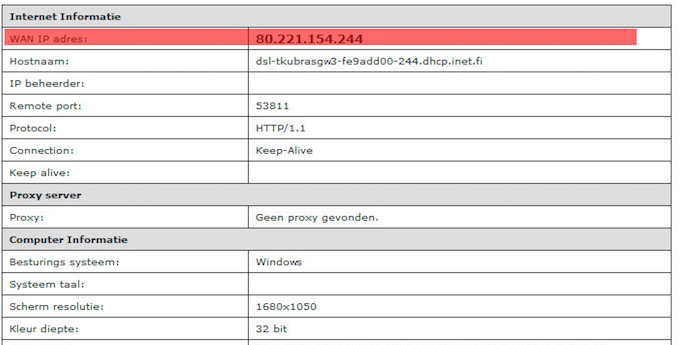
Once you have downloaded the Hikvision app, start it.
If you press the button at the top left, this screen will appear: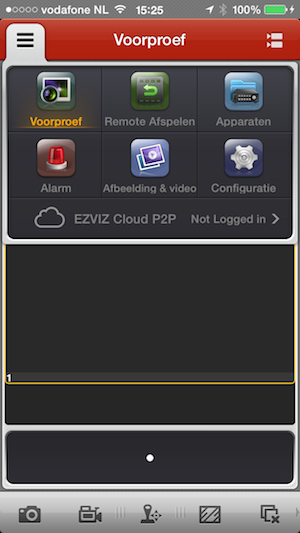
Then go to ''devices'' and press the plus sign (+)
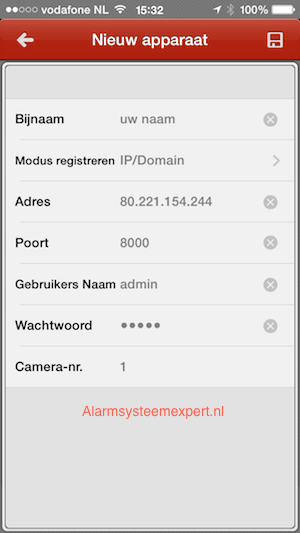
Please complete the following fields: